

Organize & Segment Contacts
How to Use Quick Filters in Swivel
Learn how to use Quick Filters to filter contacts, lists, reports, and boards in Swivel, add conditions, customize filter pills, and use Advanced Filters.
Overview
Section titled “Overview”Quick Filters make it easier to find the records and information you need without opening Advanced Filters.
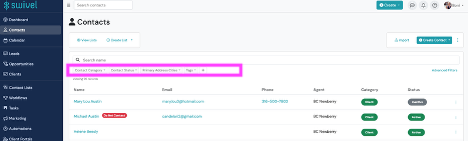
On supported pages throughout Swivel, you’ll see a row of filter pills directly below the search bar. Select a pill, choose your filter criteria, and your results update immediately.
Where to use
Section titled “Where to use”Quick Filters are available across contacts, lists, reports, boards, settings, and other areas of Swivel.
Each page displays commonly used filters, and some filters may already have values selected, such as Record Status: Active or a default date range.
When to Use
Section titled “When to Use”Use Quick Filters when you want to:
- Find records that match specific criteria.
- Narrow a list by status, category, date, tags, or other fields.
- Filter contacts using information from related records, such as products.
- Apply multiple conditions to refine your results.
- Review or change filters without opening Advanced Filters.
- Customize which filters appear on a list.
How To
Section titled “How To”How do I filter a list using Quick Filters?
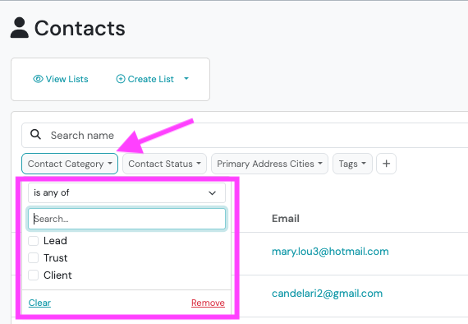
Section titled “How do I filter a list using Quick Filters?”- Open a supported list, report, or board in Swivel.
- Locate the filter pills below the search bar.
- Click the pill you want to use.
- Select how the filter should match your criteria.
- Search for and select the applicable value or values.
- Your results update as you make your selections.
When one value is selected, the pill displays that value. When multiple values are selected, the pill displays a count.
How do I add another filter?
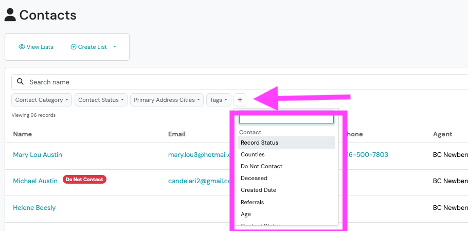
Section titled “How do I add another filter?”- Click the + button at the end of the filter row.
- Search for or browse the available fields.
- Select the field you want to filter by.
- The new filter pill opens so you can choose your criteria.
Available fields are organized by record type and may include fields from related records or custom fields.
For example, when filtering Contacts, you can add a filter based on a contact’s associated products.
How do I apply multiple conditions to the same field?
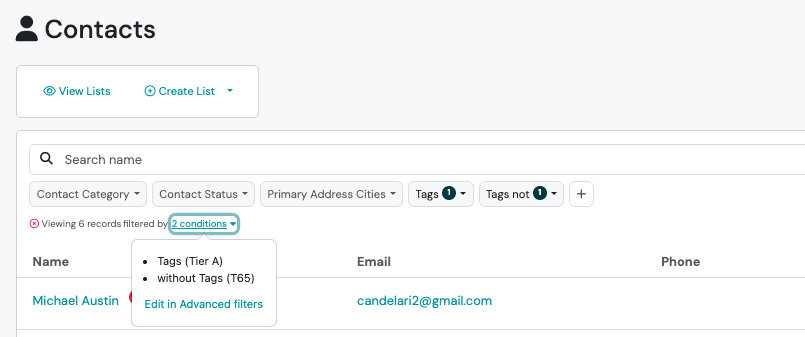
Section titled “How do I apply multiple conditions to the same field?”You can add the same field more than once to create separate conditions. For example, you might want to find contacts who have one tag but do not have another.
- Open your contact list.
- Select the Tags filter.
- Choose the tag you want to include.
- Click + and add Tags again.
- On the second Tags pill, select has none of.
- Choose the tag you want to exclude.
Your results will include contacts who meet both conditions.
How do I filter by dates, numbers, or yes/no fields?
Section titled “How do I filter by dates, numbers, or yes/no fields?”Quick Filters support different field types:
- Date fields: Select a preset such as Last 30 days or This year, choose Custom… to set your own period, or choose a specific date or date range.
- Number fields: Enter a specific number or a range of values (From and To).
- Yes/No fields: Select the applicable value, such as Do Not Contact: No.
How do I see which filters are currently applied?
Section titled “How do I see which filters are currently applied?”Below the filter pills, Swivel displays a summary showing the number of records and active filter conditions.
For example:
Section titled “For example:”Viewing 23 records filtered by 4 conditions
Click the condition count to see each filter written out.
You can also use the link in this summary to open Advanced Filters.
To clear all filters at once, click the red X beside the filter summary.
How do I remove a filter pill?
Section titled “How do I remove a filter pill?”- Click the pill you want to remove.
- Select Remove at the bottom of its menu.
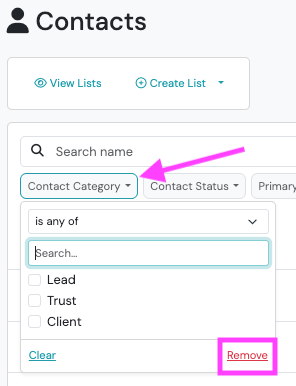
The pill disappears from the filter row. To add it again, click + and select the field.
If a link, badge, or report summary applies a filter on a field whose pill you removed, the pill returns to the row.
How do I use Advanced Filters with Quick Filters?
Section titled “How do I use Advanced Filters with Quick Filters?”Quick Filters and Advanced Filters use the same filter conditions.
- Select Advanced Filters from the filter row.
- Review your existing conditions.
- Add or modify conditions as needed.
- Use OR groups when you need results that can meet different sets of criteria.
- Apply your filters to update the list.
Changes made through Quick Filters are reflected in Advanced Filters, and changes made in Advanced Filters are reflected in the filter row.
Best Practices
Section titled “Best Practices”Start with the default filters.
Section titled “Start with the default filters.”Each page includes filters commonly used for that type of information. Check whether any filters already have values selected before reviewing your results.
Use Quick Filters for everyday searches.
Section titled “Use Quick Filters for everyday searches.”When you only need to filter by a few fields, Quick Filters let you make changes directly from the list.
Use Advanced Filters for more complex criteria.
Section titled “Use Advanced Filters for more complex criteria.”If you need OR groups or more complex combinations of conditions, use Advanced Filters.
Review all active conditions.
Section titled “Review all active conditions.”Click the condition count below the pills to confirm which filters are affecting your results.
Customize your filter row.
Section titled “Customize your filter row.”Remove default pills you don’t regularly use and add the fields most relevant to your work.
Remember that related records can affect results.
Section titled “Remember that related records can affect results.”For example, filtering Contacts by a product’s carrier uses information from the contact’s associated products.
Troubleshooting
Section titled “Troubleshooting”Why is my list already filtered when I open it?
Section titled “Why is my list already filtered when I open it?”Some Swivel pages open with default filter values already selected. For example, a list may display only active records, or a report may open with a predefined date range. Review the filter pills and their selected values to see which conditions are applied.
Why don’t I see the + button or Advanced Filters?
Section titled “Why don’t I see the + button or Advanced Filters?”Some lists have only one available filter. On these pages, Swivel displays only the applicable pill.
The + button and Advanced Filters appear only when they offer additional filtering options.
On smaller screens, filter pills that don’t fit are folded out of the row, and the + button is hidden until there is room. Applied filters that are folded out are counted in an indicator such as +3. Select it to open Advanced Filters.
Why did my filter pills disappear when I added an OR group?
Section titled “Why did my filter pills disappear when I added an OR group?”When Advanced Filters contains OR groups, the filter row displays a summary of the groups rather than the individual pills.
Open Advanced Filters to review or modify those conditions.
Why can’t I find a particular filter field?
Section titled “Why can’t I find a particular filter field?”Available filters depend on the page you’re viewing. Some pages already restrict results to a specific category or record type, so those fields aren’t offered as additional filters.
For example, a contact list already limited to a specific category won’t offer Category as an additional filter.
Why does a filter pill appear or its choices change after I select another filter?
Section titled “Why does a filter pill appear or its choices change after I select another filter?”Some filters depend on another filter. A dependent pill may appear only after you select a value on the filter it depends on, and its choices are limited to the values that fit your selection. If you change the first filter so that none of the dependent pill’s selected values are allowed, Swivel removes the dependent pill.
Why can’t I change a filter from its pill?
Section titled “Why can’t I change a filter from its pill?”Some conditions are fixed by the page or by a link you opened. Their pills show the applied value, and the menu offers Edit in Advanced Filters instead of editing options.
Why does my filter row look different from another user’s?
Section titled “Why does my filter row look different from another user’s?”Removing a default pill is saved for your own use, so other users keep their own default filter rows. The available pills may also differ depending on which list or report you’re viewing.
Why don’t I see Quick Filters on every page?
Section titled “Why don’t I see Quick Filters on every page?”Most Swivel lists support Quick Filters, but a few areas continue to use Advanced Filters only.
These include:
- Portfolio report
- Register value anomalies in the platform console
- Prebuilt tab of Email Templates
Why did my results change after clicking a status or category badge?
Section titled “Why did my results change after clicking a status or category badge?”On some pages, clicking a badge or report summary automatically applies the corresponding filter pill. Review your active conditions to see which filter was applied.
What’s the difference between Quick Filters and Advanced Filters?
Section titled “What’s the difference between Quick Filters and Advanced Filters?”Quick Filters let you apply common conditions directly from a list using filter pills.
Advanced Filters provides additional options for building more complex conditions, including OR groups.
Both use the same filtering criteria and stay synchronized.
Can I filter by more than one field?
Section titled “Can I filter by more than one field?”Yes. You can use multiple pills to apply several conditions to the same list.
Can I use the same field more than once?
Section titled “Can I use the same field more than once?”Yes. Add the field again using + to create another condition. This is useful when you want to include one value while excluding another.
Can I filter contacts by their products?
Section titled “Can I filter contacts by their products?”Yes. On Contacts, you can add supported product-related fields, such as Product · Carriers & Institutions, to filter contacts using information from their associated products.
Can I change the default filters on a page?
Section titled “Can I change the default filters on a page?”You can remove default pills you don’t use and add other available fields. Some pages do not allow removing their default pills.
Swivel remembers your removed pills. Most pages save the removal for you, platform console pages save it in the browser where you made the change, and lists inside a record keep it for your visit.
Will removing a default pill affect other users?
Section titled “Will removing a default pill affect other users?”No. Removing a default pill only affects your own filter row.
What’s the difference between Clear and Remove?
Section titled “What’s the difference between Clear and Remove?”Clear removes the selected values while keeping the pill available.
Remove takes the pill off the filter row.
Do my existing bookmarked or shared filtered links still work?
Section titled “Do my existing bookmarked or shared filtered links still work?”Yes. Existing links and bookmarks using previous filter parameters continue to work with the updated filtering interface.
Can I still use OR conditions?
Section titled “Can I still use OR conditions?”Yes. Open Advanced Filters to create or modify OR groups.
Do Quick Filters work on mobile devices?
Section titled “Do Quick Filters work on mobile devices?”Yes. On smaller screens, applied filters that don’t fit are grouped into a count indicator. On phones, Advanced Filters is available through an icon at the end of the filter row.