

Take Action on Contacts
Merge Contacts
Overview
Section titled “Overview”You can merge two contacts when they belong to the same person.
Merging combines information from both contacts into one contact and removes the duplicate contact.
If you need help finding possible duplicate contacts, see Duplicate Contacts.
Merge Contacts
Section titled “Merge Contacts”To merge contacts:
- Go to Contacts.
- Select the three-dot action menu next to the Create Contact button.
- Select Merge.
- In the first Select Contact field, search for and select a contact.
- In the second Select Contact field, search for and select the other contact.
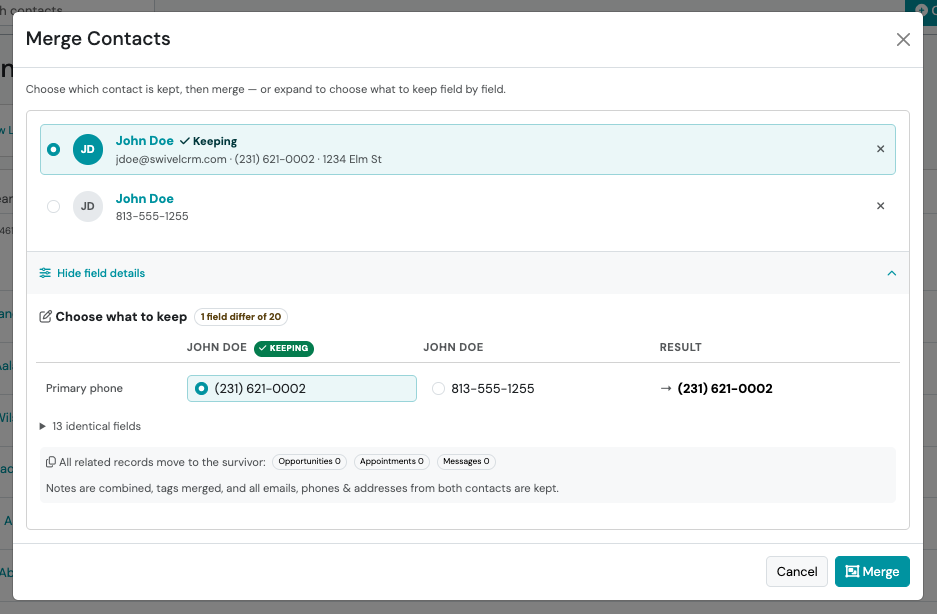
- Select the contact you want to keep. The contact marked Keeping remains after the merge.
- If needed, expand Choose fields individually to select which information to keep.
- Select Merge.
You can also start a merge from a contact’s three-dot action menu after searching for the contact in Contacts.
Choose Which Contact To Keep
Section titled “Choose Which Contact To Keep”After you select both contacts, each contact appears with a radio button. Select the radio button next to the contact you want to keep. Swivel selects one contact by default, and you can change it.
You cannot keep an archived contact. If both contacts are archived, you cannot merge them.
Check For Different Identifiers
Section titled “Check For Different Identifiers”If the two contacts have different SSN or Medicare numbers, Swivel shows the warning A strong identifier (SSN / Medicare #) differs. This means the contacts may be two different people. Merging permanently deletes one of them, so confirm that both contacts belong to the same person before you continue.
Choose Which Information To Keep
Section titled “Choose Which Information To Keep”If the two contacts have different information, you can choose which values remain after the merge.
Expand Choose fields individually to review fields with different values and select the information you want to keep.
You may need to choose between different:
- Addresses
- Assigned team members
- Contact details
What Happens If A Contact Changes Before I Merge?
Section titled “What Happens If A Contact Changes Before I Merge?”If one of the contacts is edited after you open the merge, Swivel refreshes the comparison and asks you to review the details again. Check the updated information, then select Merge again.
What Happens After A Merge?
Section titled “What Happens After A Merge?”After a merge:
- One contact remains.
- The duplicate contact is removed.
- Information from both contacts is combined.
- Related activity and history remain with the contact you keep.
Information that is preserved includes:
- Notes
- Appointments
- Opportunities
- Tasks
- Messages
- Documents
- Tags
- Email addresses
- Phone numbers
- Addresses
Can I Undo A Contact Merge?
Section titled “Can I Undo A Contact Merge?”No. Merging permanently combines two contacts into one and cannot be reversed.
Before merging, confirm that both contacts belong to the same person and that the combined information is correct.
What Is The Difference Between Duplicate Contacts And Manual Merging?
Section titled “What Is The Difference Between Duplicate Contacts And Manual Merging?”Duplicate Contacts helps you find possible duplicate contacts by suggesting contacts that may belong to the same person.
Use Duplicate Contacts when you want to:
- Review suggested duplicate contacts
- Mark contacts as Not duplicates
Duplicate Contacts does not suggest a pair when the contacts have different SSNs, different birthdates, or are members of the same household with different names. Use manual merging when you already know which two contacts should be combined.