
Swivel Client Portal User Help Guide
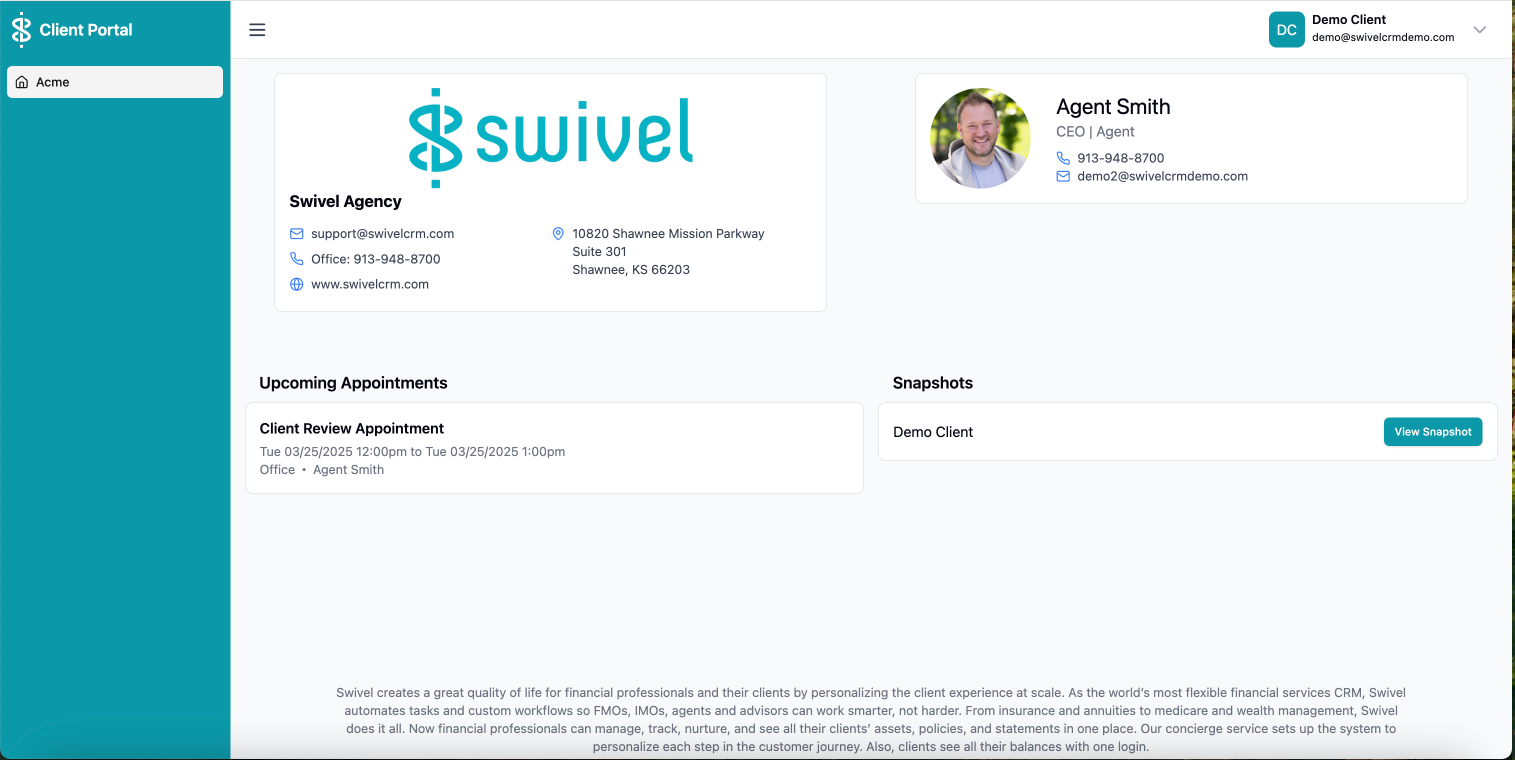
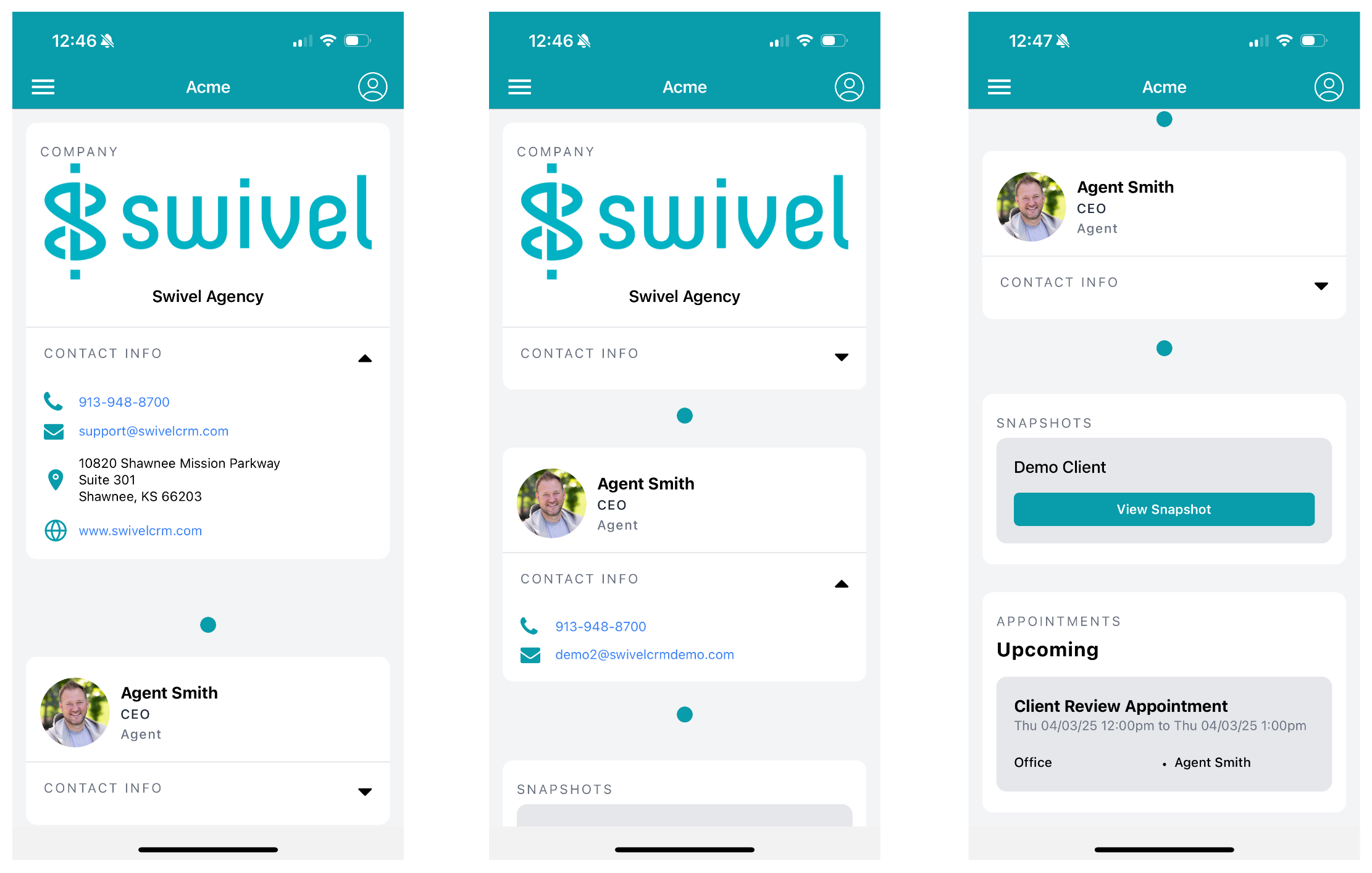
The Swivel Client Portal gives clients access into information directly from their agent or advisor. Clients can view a snapshot of their accounts and policies at a point in time as well as their upcoming appointments. They also can view company, agent, advisor, or staff contact information directly from the portal.
Website View:
Mobile Application:
Accepting a Swivel Portal Invite & Creating an Account
Section titled “Accepting a Swivel Portal Invite & Creating an Account”If you have been invited by your agent’s office to the Swivel Client Portal, you will receive and email to accept this invitation. The following steps help guide you through account set up. This email will come from the email address: support@swivelcrm.com.
- From the received invite email, select Accept Invite.
- In the sign up window, your name and email have been prefilled, so you only need to create a password for your new account.
- Accept the Terms of Service and Privacy Policy as well as the Swivel General Information and Key Terms.
- Select Accept Invitation.
- Once accepted you will be prompted to login using your email and password.
Viewing Your Account & Policy Snapshot
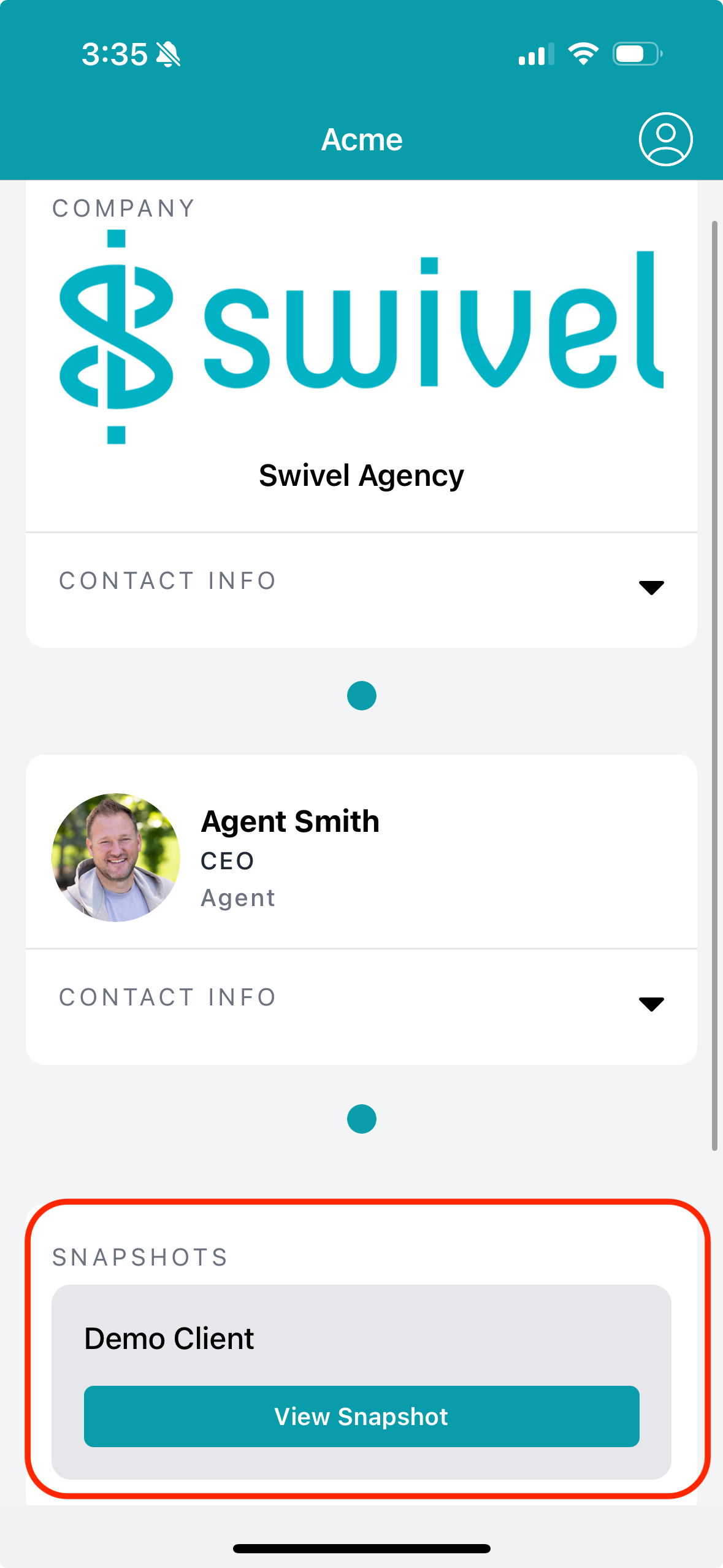
Section titled “Viewing Your Account & Policy Snapshot”- Login to your Swivel Client Portal account at app.swivelapp.com or on the Swivel Portal Mobile App
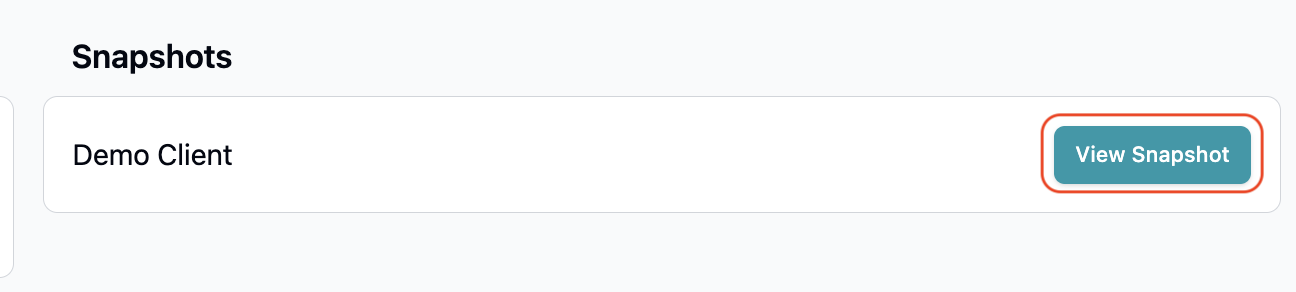
- Navigate to the Snapshots Section
- Select View Snapshot
Website View:
From the mobile application:
Updating Profile Information
Section titled “Updating Profile Information”These steps can also be done on the mobile application.
- Login to your Swivel Client Portal account at app.swivelapp.com
- Select your name in the top right hand corner of the webpage and select Your Profile
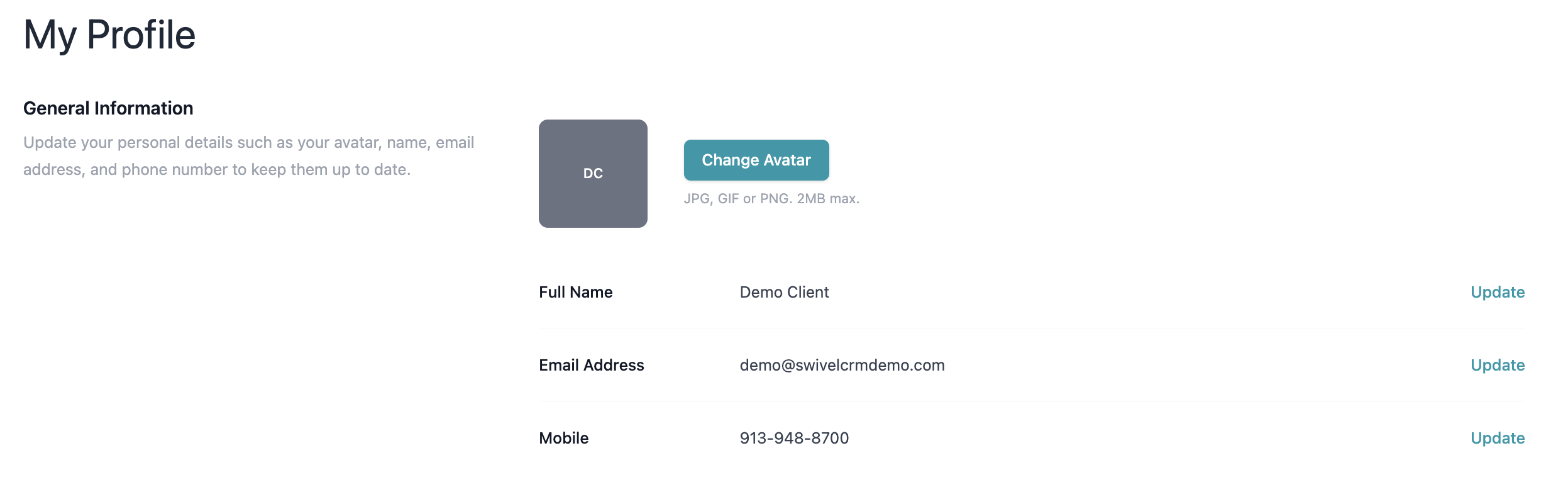
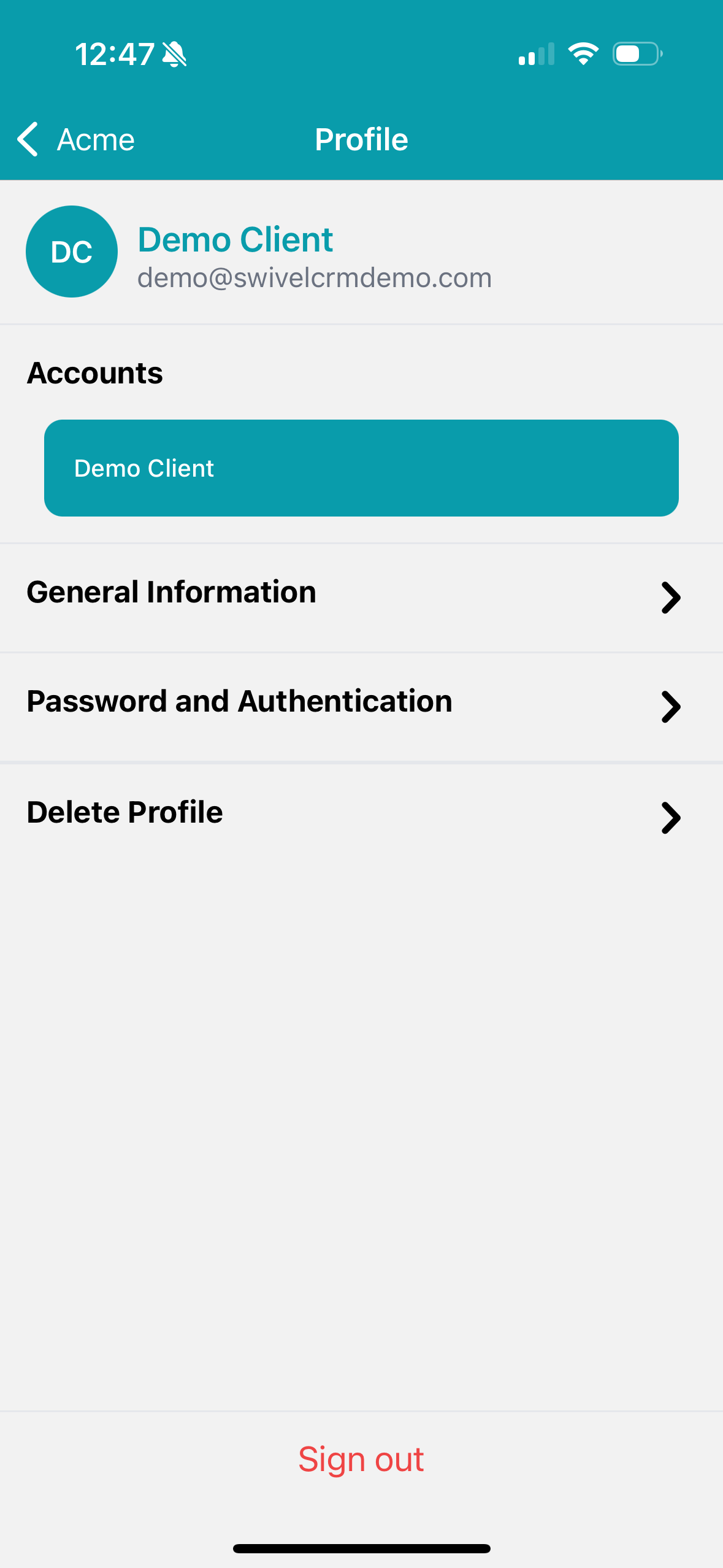
- To update your Name, Email, or Mobile Number select Update next to the item your would like to update. Selecting Enter saves any changes you make.
Website View:
From the mobile application:
Updating Password Information
Section titled “Updating Password Information”These steps can also be done on the mobile application.
- Login to your Swivel Client Portal account at app.swivelapp.com
- Select your name in the top right hand corner of the webpage and select Your Profile
- Under the Password and Authentication section select Update to change and confirm a new password for your account. Selecting Enter saves any changes you make.

Deleting Your Profile
Section titled “Deleting Your Profile”These steps can also be done on the mobile application.
- Login to your Swivel Client Portal account at app.swivelapp.com
- Select your name in the top right hand corner of the webpage and select Your Profile
- Under the Delete Profile section, select Delete Profile.
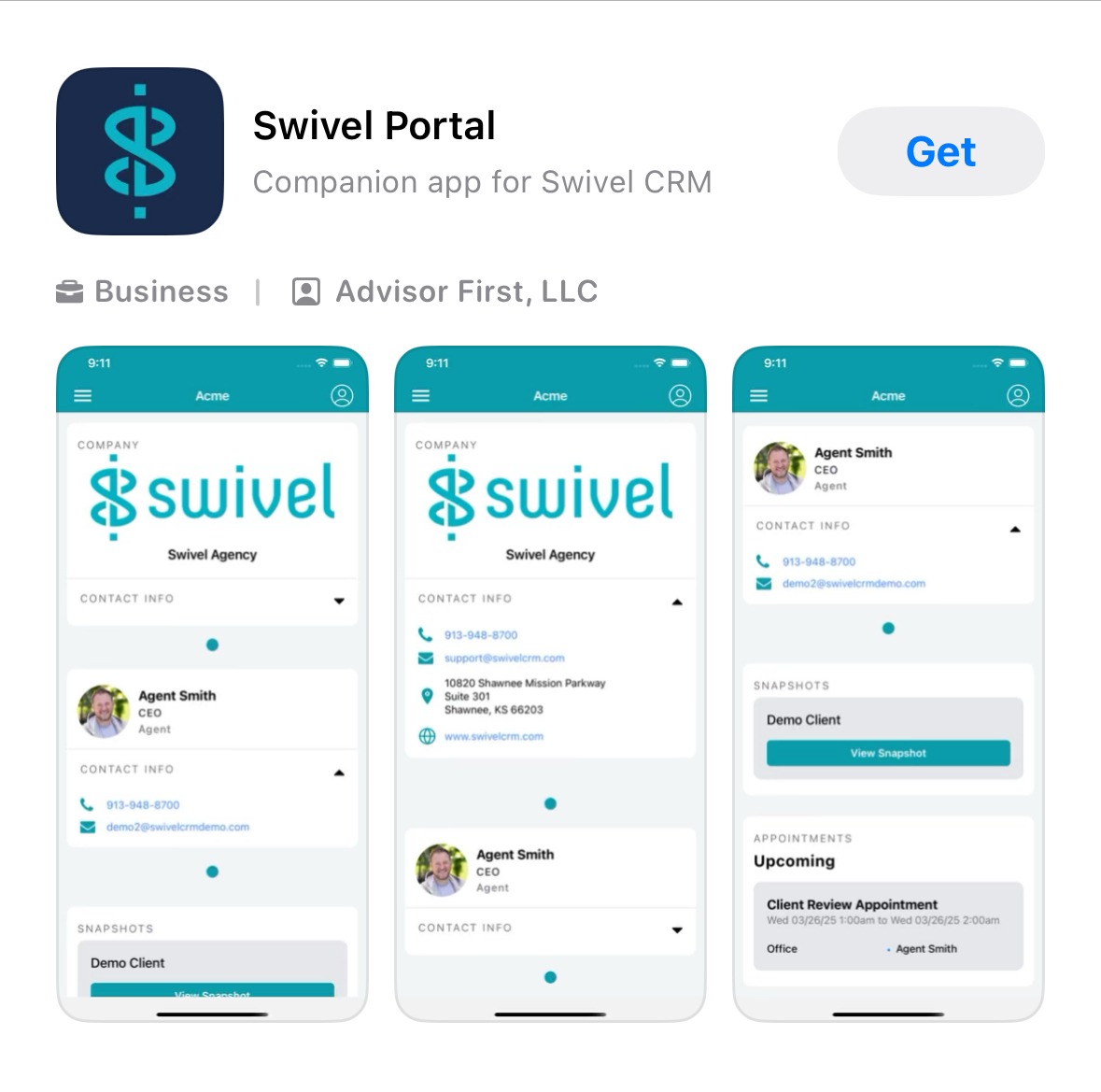
You can download the Swivel Portal mobile application to view this information from anytime, anywhere.